Manage Your Account
This guide covers how to manage your Stadia Maps account from the Manage Your Account page in the Stadia Maps Dashboard. From this page, you can view and edit your contact information, login methods, and billing & payment information. You can also view your Management API key, if you have one, as well as deactivate your account.
If you’re looking to manage your subscription, see Upgrading Your Subscription.
Contact Information
You can update your contact information by clicking the Update Contact Details button in the Manage Your Account page. From that page, you can update your name, business name, address, and phone, as well as your Tax ID Type and Tax ID, if applicable.
Having Trouble Entering your Tax ID?
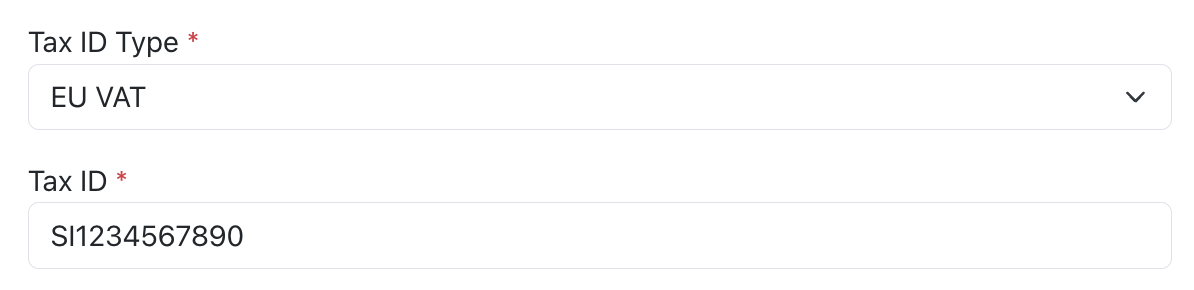
If you are in Europe and you're having trouble entering the Tax ID for your country, try selecting "EU VAT” in the Tax ID Type, then entering your two-letter country code and 10 digit tax number in the Tax ID field.
For example, if you in Slovenia, choose EU VAT as the Tax ID Type, then enter your “SI" plus your 10 digit TIN in the Tax ID field.
If you continue to have trouble entering your Tax ID, please reach out to our Support team - we’re happy to help.
Account Emails
You can update your account email address by clicking the Update Email button in the Manage Your Account page.
From that page, you are also able to optionally set a Billing email. If this is set, you will receive all billing emails (invoices, receipts, etc.) at this address instead of your account email.
Account Password
You can change your account password by clicking the Update Email button in the Manage Your Account page.
Management API Key
If you have access to the Account Management API, you’ll be able to view your Account Management API key from the Manage Your Account page.
Note
Management API access is only available on request. You do not need management API access to use our services (if you're looking for a regular API key, head to our authentication docs.
If you would like access, please contact us at support@stadiamaps.com, and tell us about your use case. You will only be able to see your management API key after we enable access.
Payment Methods
You can add or update your payment method from the Manage Your Account page. We accept different payment methods depending on your location and availability, so the payment methods that are available to you may vary slightly.
The below table represents payment methods available to users on our Starter, Standard, and Professional plans. If you are on a custom Enterprise plan, we may have additional payment methods available.
| Payment Method | Type | Regional Availability | Notes |
|---|---|---|---|
| Credit Card | Card | All Regions | Visa, Mastercard, American Express, Discover, Diners Club, Cartes Bancaires, JCB, and China UnionPay |
| Korean Cards | Card | South Korea | |
| Apple Pay | Wallet | All Regions | |
| Google Pay | Wallet | All Regions | |
| Kakao Pay | Wallet | South Korea | Cards and Kakao Money |
| Link | Wallet | All Regions | Cards and Instant Bank Transfer (United States only) |
| Naver Pay | Wallet | South Korea | Cards and Naver points |
| PAYCO | Wallet | South Korea | Cards, bank accounts, carrier billing, gift certificates, and ATMs |
| Samsung Pay | Wallet | South Korea | |
| Satispay | Wallet | Italy |
Invoices
You can view and download invoices and receipts from the Manage Your Account page.
To view an invoice, click “View” next to an invoice. This will take you to the a hosted invoice page on Stripe.com, which is our payment processor. From that page, you’ll be able to download the invoice or receipt.
Tax ID missing on your Invoice?
If you are missing your Tax ID on your invoice after entering it in Your Contact Information, reach out to our Support team and we will send you a corrected version.
Deactivating your Account
If you would like to deactivate your account, you can do so by clicking the red “Deactivate Account” button on the Manage Your Account page. Deactivating your account immediately revokes all access, cancels any subscription, and signs you out. When your account is deactivated, you will no longer be able to login or use any of Stadia Maps' services.
After you deactivate your account, if you would like your account reactivated or if you would like to request your personal information be removed as outlined in our Privacy Policy, you can contact our support team.
Info
Instead of deactivating your account, consider moving to our Free plan. Keeping your plan active allows you to continue to use some of our products for free for non-commercial purposes.
For more details on our Free plan, see our Pricing Page.
Getting Help
If you experience any issues or have questions, please reach out to our support team - we are happy to help.