Changing Specific Place Labels on the Map
Free
Starter
Standard
Professional
Have you found wanted to change the label of a particular feature on your map? Maybe you have to display a political viewpoint, or just want to add your own label to the map to make a place more prominent?
This tutorial will cover what you need to know, along with example code for MapLibre GL JS and MapLibre GL Leaflet.
For local development on a web server at localhost or 127.0.0.1,
you can get started without any API keys or domain setup!
For mobile, backend, and non-local web development, you'll need either domain auth or an API key. If you don't already have a Stadia Maps account, sign up for a free to get started.
Domain-based authentication
Domain-based authentication is the easiest form of authentication for production web apps. No additional application code is required, and you don't need to worry about anyone scraping your API keys. We recommend this for most browser-based applications.
- Sign in to the client dashboard.
- Click "Manage Properties."
- Under "Authentication Configuration," click the button to add your domain.
API key authentication
Authenticating requests via API key
You can authenticate your requests by adding an API key to the query string or HTTP header.
https://api.stadiamaps.com/tz/lookup/v1?lat=59.43696&lng=24.75357&api_key=YOUR-API-KEY
Authorization: Stadia-Auth YOUR-API-KEY
The simplest is to add a query string parameter api_key=YOUR-API-KEY to your request URL.
For example, to access the /tz/lookup API endpoint, your request URL might look like this.
You can also use an Authorization HTTP header instead of a query string
as shown below.
Don't forget the Stadia-Auth prefix!
How to get an API key
Don't have an API key yet? Follow these easy steps!
- Sign in to the client dashboard. (If you don't have an account yet, sign up for free; no credit card required!)
- Click "Manage Properties."
- If you have more than one property (ex: for several websites or apps), make sure you have selected the correct property from the dropdown at the top of the page.
- Under "Authentication Configuration," you can generate, view or revoke your API key.
Video: How to generate your API key
Finding the label to change
The simplest approach to changing labels is to modify your map style.
Normally the text-field is a simple property getter, like ["get", "name:en"].
We'll replace the simple getter with conditional logic based on the ID.
For example, if you want to rename the Gulf of Mexico, here's how you'd change your style:
  "text-field": [
-   ["get", "name:en"]
+   "case",
+   ["==", ["id"], 3056391900],
+   "Gulf of America",
+   ["get", "name:en"]
  ],
While the mechanism is extremely simple, it does rely on you knowing two things: the feature and layer ID. We've made it easy to get these with the map below. Just find the label you're looking for, click on it, and copy the ID and source layer.
© Stadia Maps © OpenMapTiles © OpenStreetMap
Changing the label
Now that we have a feature ID and a source layer, we can go about modifying our stylesheet. Here's how you can do it on the fly in JavaScript!
To change the layer in MapLibre GL JS, you'll need to add some code in a style load listener. For a full example of how to set up a full-page map, check our quickstart tutorial.
var map = new maplibregl.Map({
    container: 'map',
    style: 'https://tiles.stadiamaps.com/styles/alidade_smooth.json',  // Style URL; see our documentation for more options
    center: [-87, 24],  // Initial focus coordinate
    zoom: 4
});

map.on('style.load', (e) => {
    const style = map.getStyle();

    for (const targetLayer of style.layers) {
        // We're interested in layers that display items from water_name
        if (targetLayer["source-layer"] === 'water_name') {
            // Add some switching logic for the text-field, matching against the feature ID: 3056391900
            // If you have another feature you need update, you will need to make adjustments to the case condition below
            targetLayer.layout['text-field'] = [
                'case',
                ["==", ["id"], 3056391900],
                "Gulf of America",
                ["get", "name:en"]
            ];
        }
    }
    map.setStyle(style);
});
You can change labels in leaflet too, if you're using the MapLibre GL Leaflet plugin. For a full example of how to set up vector tiles in Leaflet, check our quickstart tutorial. To change the layer in MapLibre GL Leaflet, you'll need to add some code in a style load listener.
const lmap = L.map('map').setView([24, -87], 5);
const gl = L.maplibreGL({
style: 'https://tiles.stadiamaps.com/styles/alidade_smooth.json',
attribution: '© <a href="https://stadiamaps.com/attribution/" target="_blank">Stadia Maps</a>, © <a href="https://openmaptiles.org/" target="_blank">OpenMapTiles</a> © <a href="https://www.openstreetmap.org/copyright" target="_blank">OpenStreetMap</a>',
}).addTo(lmap);
const map = gl.getMaplibreMap();
map.on('style.load', (e) => {
const style = map.getStyle();
for (const targetLayer of style.layers) {
// We're interested in layers that display items from water_name
if (targetLayer["source-layer"] === 'water_name') {
// Add some switching logic for the text-field, matching against the feature ID: 3056391900
// If you have another feature you need update, you will need to make adjustments to the case condition below
targetLayer.layout['text-field'] = [
'case',
["==", ["id"], 3056391900],
"Gulf of America",
["get", "name:en"]
];
}
}
map.setStyle(style);
});
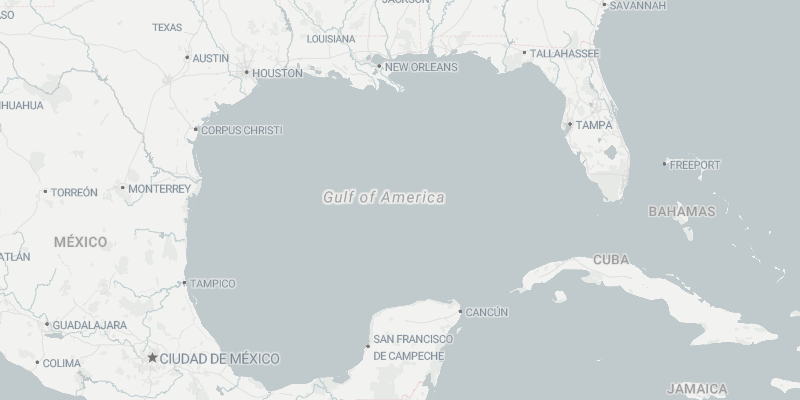
Next Steps
And that's it. The above examples are extendable to more features by adding additional cases. If you're already hosting a custom style, you may rather edit the style directly, but this demonstrates the overall approach.
Once you're ready to move beyond localhost testing, sign up for a free Stadia Maps account,
and we'll walk through the next steps to registering your domain or getting an API key.